So, you found the perfect embroidery design online—a gorgeous floral pattern or a witty quote that’s just right for your next project. You download it, rush to your Bernina machine, and… nothing. The machine doesn’t recognize the file. This frustrating moment is a universal rite of passage for embroiderers. Bernina machines, known for their precision and quality, primarily read a specific file format called ART. If your design isn’t in that format, you’ve hit a digital roadblock. But don’t let that stop your creativity! Learning how to convert embroidery file for Bernina embroidery machine is a fundamental and surprisingly simple skill that unlocks a universe of designs.
This guide will walk you through everything you need to know, from understanding file formats to using conversion software and online tools, ensuring you spend less time troubleshooting and more time stitching.
Understanding the Language of Machines: Why Formats Matter
Embroidery machines don’t interpret images like we do. They read precise digital instructions that tell the needle exactly where to move, when to stitch, and what color thread to use. Different brands use different “languages” or proprietary formats.
- Bernina’s Native Language: ART. Most modern Bernina embroidery machines (like the 7 Series, 5 Series, 4 Series, and 3 Series) are designed to read .ART files. Some older models may also use .EXP. This is the format you want for a seamless experience.
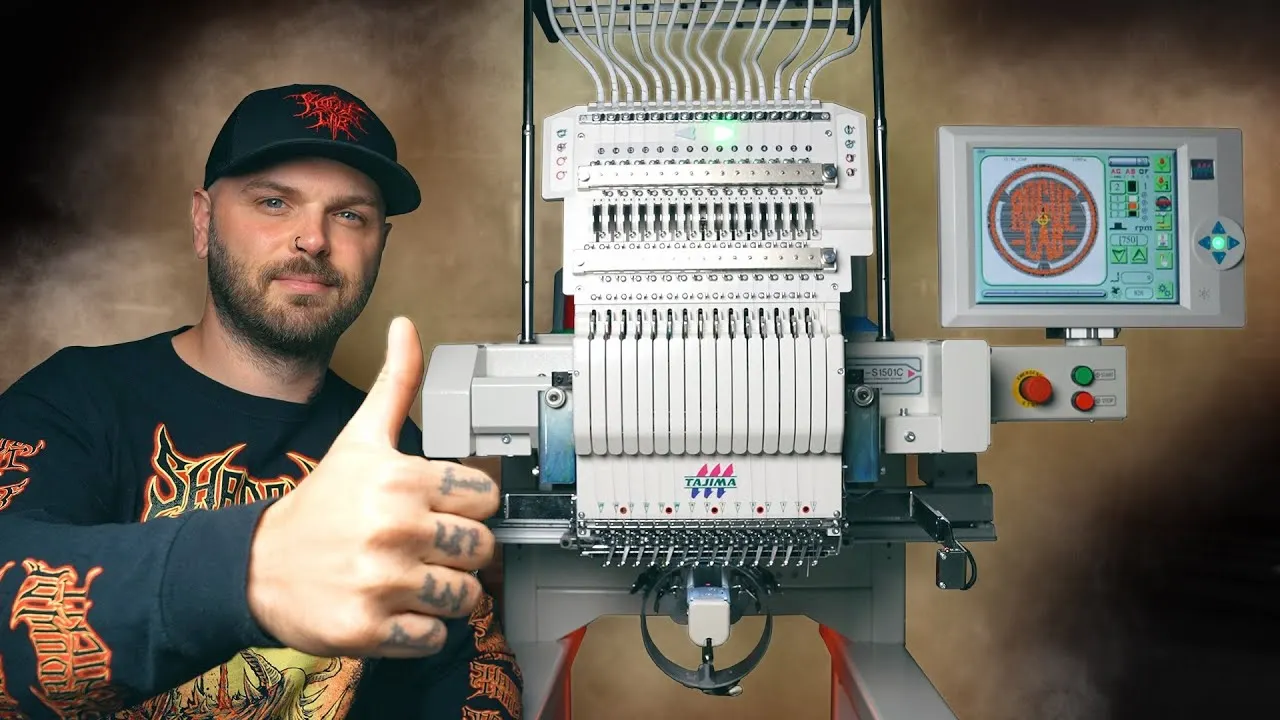
- The Common Challenge: Other Formats. The embroidery world is full of other formats. You’ll frequently encounter .PES (Brother/Baby Lock), .DST (Tajima, a common commercial format), .JEF (Janome), and .VP3 (Husqvarna Viking). Your Bernina machine will not natively read these files, which is where conversion becomes essential.
- The Universal Bridge: DST & EXP. While not always perfect, .DST is considered a industry-standard format that most conversion software can handle well, often making it a good intermediate step in the conversion process.
Pre-Conversion Prep: Setting Yourself Up for Success
Before you convert, a little preparation prevents a lot of problems. Taking these steps ensures your final design stitches out beautifully.
1. Know Your Specific Bernina Model. Check your machine’s manual or specifications. Is it a B790 Plus that uses .ART80, or an older model that uses .ART? Knowing the exact format suffix ensures you choose the right target in your converter.
2. Source a High-Quality Design. The golden rule of file conversion is “garbage in, garbage out.” If you start with a low-resolution, poorly digitized design, the converted file will only amplify those flaws. Look for designs from reputable sites that offer clean, well-digitized files in a format like DST or PES for the best starting point.
3. Have Realistic Expectations. Complex conversions—like turning a detailed JPEG image directly into an embroidery file—require professional digitizing software, not just a simple format converter. For this guide, we’re focusing on converting from one machine format (like PES) to another (ART), which is a much more reliable process.
Method 1: The Professional Standard – Using Dedicated Software
For frequent converters or professionals, investing in dedicated software offers the most control and reliability.
Step 1: Choose Your Software. Two standout options are popular in the Bernina community:
- EmbridgeryWorks Pro/Studio: This is a favorite for its intuitive interface and excellent support for Bernina formats.
- SewWhat-Pro & SewArt: A powerful, more affordable combo. SewArt digitizes images to stitch files, and SewWhat-Pro converts between formats.
Step 2: Import Your Source File. Open your chosen software. Use the “Open” or “Import” function to load the design file you want to convert (e.g., a .PES or .DST file). The design will appear on the virtual hoop.
Step 3: Review and Edit (Crucial Step!). This is the power of software. Before converting, you can:
- Check the stitch count and estimated sew time.
- Re-size the design (but be careful not to enlarge it more than 20% to avoid poor stitch quality).
- Re-order color sequences or change thread colors visually.
- Use the “Clean Stitches” tool to fix small errors or jumps.
Step 4: Convert and Save As ART. Go to File > Save As or Export. In the dialog box, navigate to the save location. Then, from the “Save as type” or “Format” dropdown menu, select the correct Bernina ART format (e.g., Bernina ART (.ART)). Give your file a clear name and click Save. Your design is now ready for your USB stick and machine.
Method 2: The Quick & Easy Solution – Online Converters
For a one-off conversion, online tools are incredibly convenient and often free. They are perfect for when you need a quick fix without installing software.
Step 1: Select a Reputable Online Converter. Search for “online embroidery file converter.” Reliable options include EmbroideryOnline.com, MyEditor.com, and Convertio.co. Ensure the site supports both your source format and the target Bernina ART format.
Step 2: Upload Your File. Click the “Upload” or “Choose File” button. Navigate to the design file on your computer and select it. The site will begin uploading.
Step 3: Configure the Conversion. Choose your target format. In the dropdown menu, select “Bernina ART” or similar. Some advanced sites may let you choose the specific ART version (like ART50, ART80). If you know your model’s requirement, select it here.
Step 4: Convert and Download. Click the “Convert,” “Start,” or “Download” button. The server will process the file. Once complete, a download link will appear. Important: Always scan downloaded files with your antivirus software. Transfer the new .ART file to your USB drive and test it on your Bernina.
Method 3: The Bernina Ecosystem – Using Built-In Tools
Don’t overlook the official resources Bernina provides.
- Bernina Embroidery Software: If you own Bernina’s official digitizing software (like V8), conversion is built-in. Simply open the non-ART file and save it as an ART file. This software is a significant investment but offers flawless compatibility.
- Bernina V8 Designer Plus for BERNINA Owners: This is a more affordable, feature-limited version of the full software that still handles file conversion beautifully. It’s worth checking if your machine qualified for a version of this software.
- Your Machine’s USB Port: Remember, you must transfer the final .ART file via a USB stick formatted for your Bernina (usually FAT32). Your machine cannot read files directly from a computer via a cable in most cases.
Troubleshooting Common Conversion Problems
Even with perfect steps, issues can arise. Here’s how to solve them:
- “File Not Supported” Error on Machine: Double-check the ART version. A B790+ requires .ART80, while a 580e uses .ART50. Converting to the wrong sub-format can cause this error. Re-convert using the correct target.
- Design is the Wrong Size: The design may have contained resizing locks or was digitized in a different hoop size. Use your software to verify and set the size in millimeters or inches before saving the ART file.
- Colors are Incorrect: The conversion process can sometimes misinterpret color palettes. Be prepared to re-map colors manually on your Bernina’s screen before stitching. It’s good practice to do a thread check before starting your final project.
- Poor Stitch Quality After Conversion: This usually points back to the source file being poorly digitized. Conversion changes the format, not the underlying stitch data. Always source designs from reputable digitizers.
Conclusion: Stitch Without Limits
Mastering the ability to convert embroidery file for Bernina embroidery machine is like receiving a key to a vast creative library. It transforms your machine from a closed system into an open platform, allowing you to access millions of designs from across the globe. No longer are you confined to a single brand’s catalog; you can stitch a Brother-designed pattern on your Bernina with confidence.
Start simple. Find a small, well-digitized PES file from a trusted designer and practice converting it using an online tool or software trial. Test the converted ART file on a scrap of fabric. That successful stitch-out isn’t just a pattern—it’s proof of your new skill. By embracing file conversion, you empower your creativity, ensure your Bernina works to its full potential, and truly make every project your own. Happy stitching